KnowledgeDNA™ User Training
How to Reset Your Password
If you have forgotten your password or misplaced your initial temporary password, you can reset your password by:
- Open a browser to kdna.kdna.com.
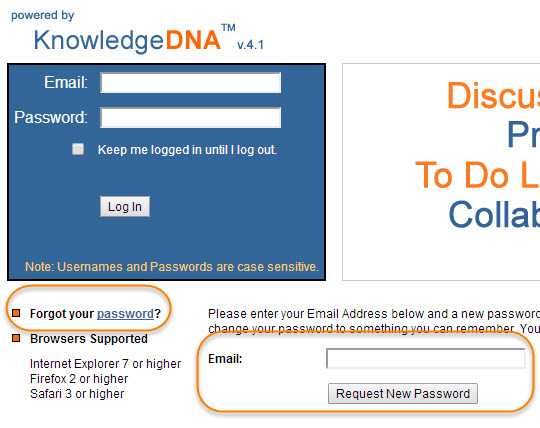
- Select the "Forgot your password"?.
- Enter your email addres in the Email field. The email you will enter is the one to which you KDNA daily alert are sent.
- Select the Select New Password button. A new temporary password will immediately be sent to your via email.
How to Change Your KDNA User Name / Email
Your KDNA account email address in used for your Login User Name and where daily alerts are sent. Many times your KDNA account is setup with an email address that is not your preferred account. Or perhaps you have changed email addresses. To reset your email address in KDNA:
- Log into KDNA at www.kdna.com.
- Select Admin - Preference - My Settings.
- In the Primary Email field, enter user new email address.
- Select the Save My Settings button.
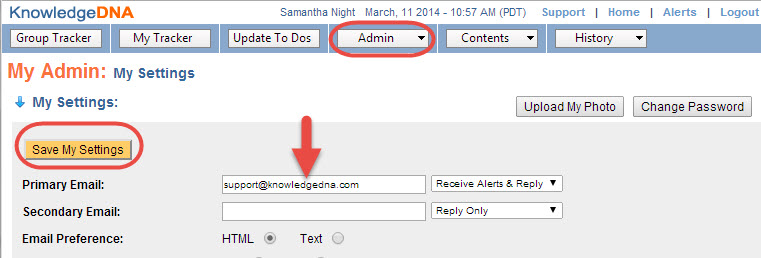
Note: The secondary email field can be used if you want to have alerts sent to a second email address. Just enter a second unique email address in the secondary email address field; change the pull down to the left to "Receive Alerts & Reply"; and select the "Save My Settings" button.
Updating Actuals Further Than 2 Periods Ago
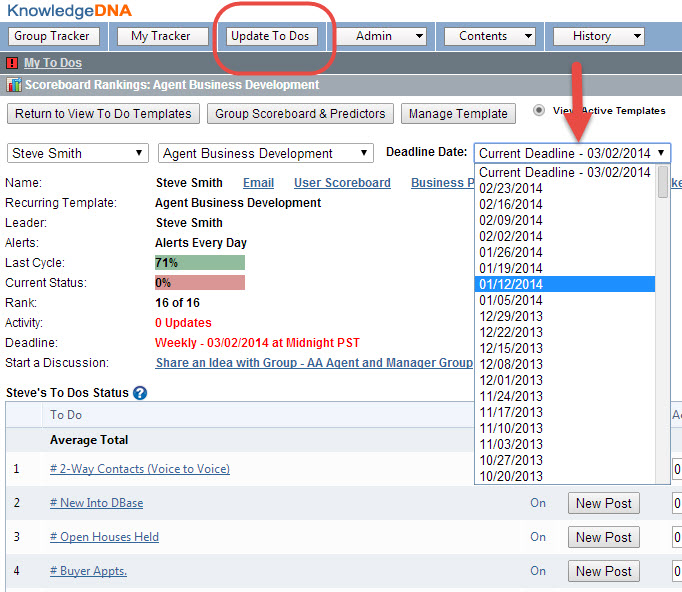
In most cases users can update their actuals for the current period and the previous 2 periods from the landing page. However, there are times when you will need to update actuals from a time period further back than 2 periods. If this case, follow these steps:
- Log into KDNA at www.kdna.com.
- Select the Update To Dos button at the top left of the screen.
- If it is not already selected, select your name and the correct template name from the first 2 pull downs.
- From the third pull down, select the deadline date for the actuals your wish to change.
- Make the desired changes to the actuals.
- Select the Save Changes button.
Viewing All Past User Data
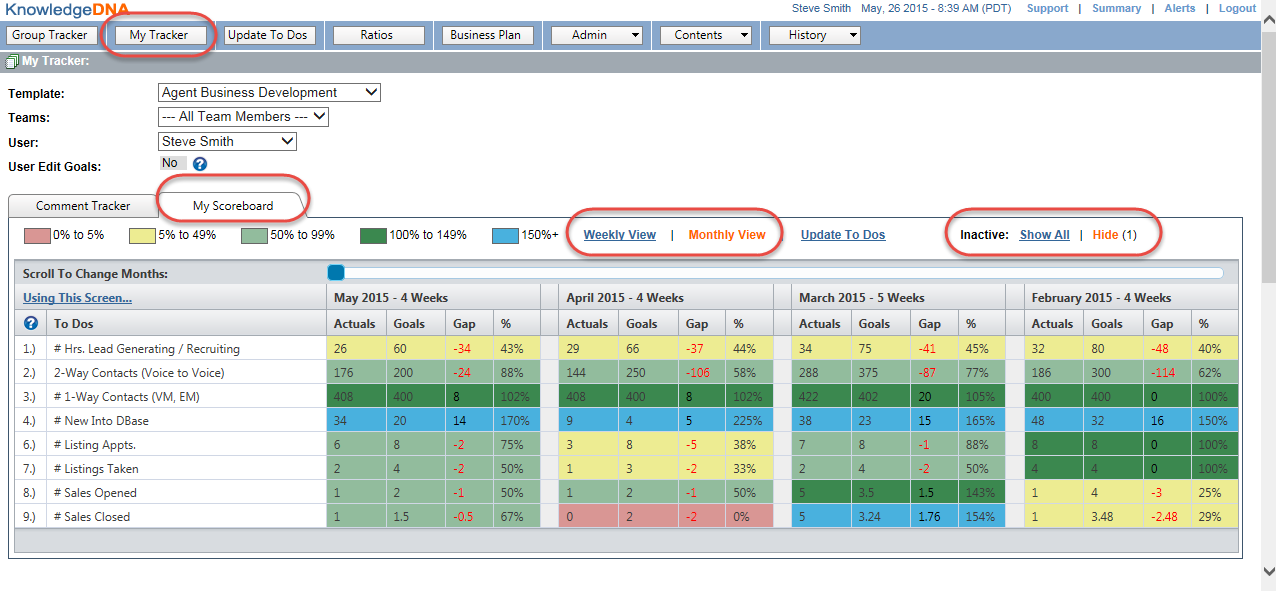
All data that a user has entered since they began tracking in KDNA is available to view in the My Scoreboard screen. Data can be viewed in a compiled Monthly or Weekly view. The My Scoreboard page will show you the Actuals, Goals, Gap between Goals and Actuals, and the percent complete values. To access a person's data:
- Log into KDNA at kdna.kdna.com.
- Select the My Tracker button at the top left of the screen.
- Select the My Scoreboard tab.
- Select the Template name and User name, if necessary.
- Select the Weekly View or Monthly View link.
- You can use the Blue Scrollbar to view past periods.
- By default the currently inactive To Dos are not shown. You can select the Show All link to see all To Dos.
How to Turn a Category Off
If your manager or coach has given you tracker permissions to set your own goals, you can choose to turn one or more categories off. By turning a category off, it will not appear on your daily alerts on data input screen. This makes entering your information easier because there are fewer categories. You can quickly view any hidden goals as a review at any time.
Categories can be turned off from the data entry screen or the Update To Dos screen unless you have an active Business Plan. If you have an active Business Plan, the category must be turned off from the Busines Plan screen.
- Log into KDNA at www.kdna.com.
- Select the Group Scoreboard button at the top left of the screen.
- If it is not already selected, select the correct template name from the Recurring Template pull down.
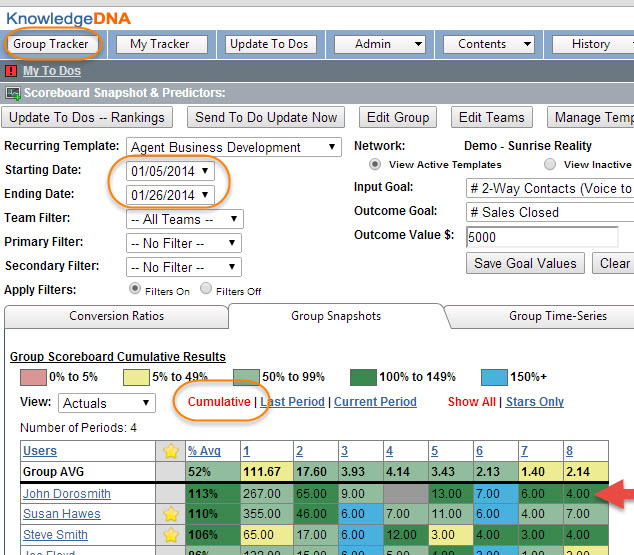
- You will need to select the bounding dates of the time period you want to view. From the Starting Deadline pull down select the earlier of your bounding time periods. In this example, 01/05/2014 was selected.
- From the Ending Deadline pull down select the later of your bounding time periods. In this example, 01/26/2014 was selected.
- Now select the Cumulative link. Each user row show that person's Cumulative Actuals for the designated time period. The last row shows the totals for all individuals shown in the list.
How to View Cumulative Totals for a Time Period (ex. Year to Date)
There are many ways to view data within KDNA. But what if you just want to see your Cumulative Actuals for a specific time such as Year to Date? To view the Actual Totals for a specific time period:
- Log into KDNA at www.kdna.com.
- Select the Group Scoreboard button at the top left of the screen.
- If it is not already selected, select the correct template name from the Recurring Template pull down.
- You will need to select the bounding dates of the time period you want to view. From the Starting Deadline pull down select the earlier of your bounding time periods. In this example, 01/05/2014 was selected.
- From the Ending Deadline pull down select the later of your bounding time periods. In this example, 01/26/2014 was selected.
- Now select the Cumulative link. Each user row show that person's Cumulative Actuals for the designated time period. The last row shows the totals for all individuals shown in the list.
How to Add KDNA to Your iPhone Home Page
There is not currently a Smart Phone app for KnowledgeDNA. You access your tracker input page through your browser on your Smart Phone. You can create an icon on your phone's home page so that you can more easily access KDNA (ie. You don't have to find the daily email.) However, the security code for the web address does expire every 30 days. So, once your icon no long works you will need to repeat these steps:
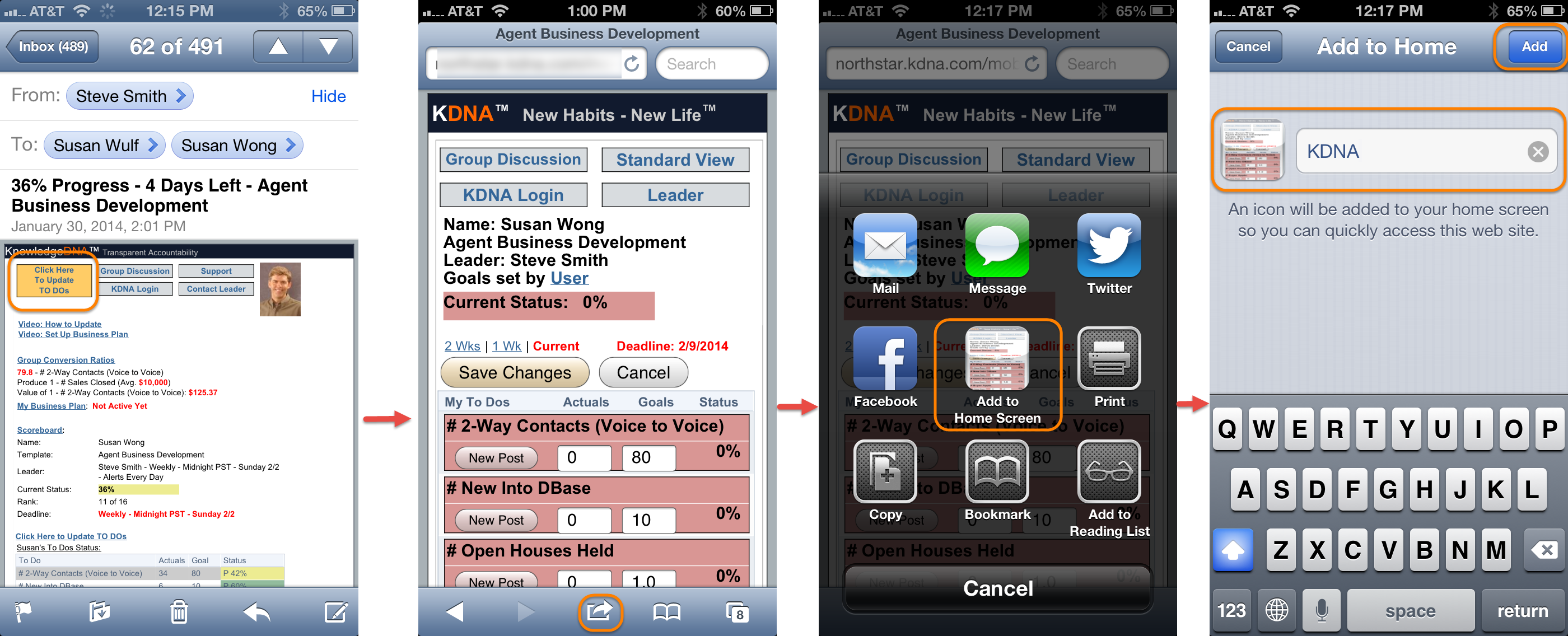
- Open your daily alert email on your iPhone.
- Select the orange Click Here to Update Your To Dos button at the top of the email. This will open your phone's browers to your KDNA tracker input screen.
- At the bottom of the screen select the transfer icon.
- Next, select the Add to Home Screen button.
- Finally, give your new icon a name and select the Add button.
Mobile Devices and Apps
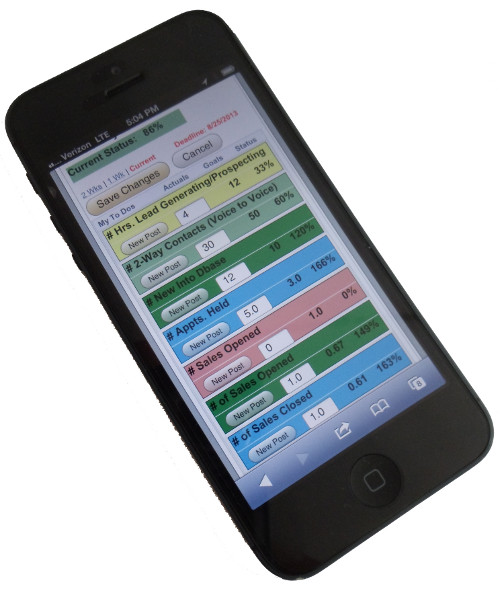
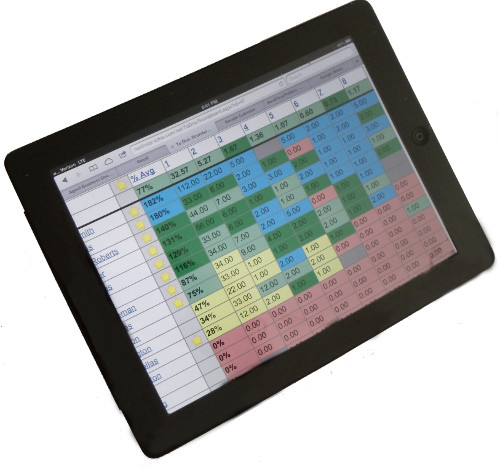
You can update your numbers on your data entry screen from any mobile device that supports a browser.
Currently there is Not an App for KnowledgeDNA. The orange Click Here to Update To Dos
button initiates the data entry screen on a browser. However, KDNA will be developing an App in the future.